Windows Version
A native Windows app. Scouts and adults sign in on a website from any tablet or
laptop at the venue; the district advancement chair runs the event in a Windows
app on the admin computer. It’s a single EagleBoards.exe that includes its
own .NET runtime, so there’s nothing to install.
Get it: github.com/deekayen/eagleboards-windows, under Releases; see Install below.
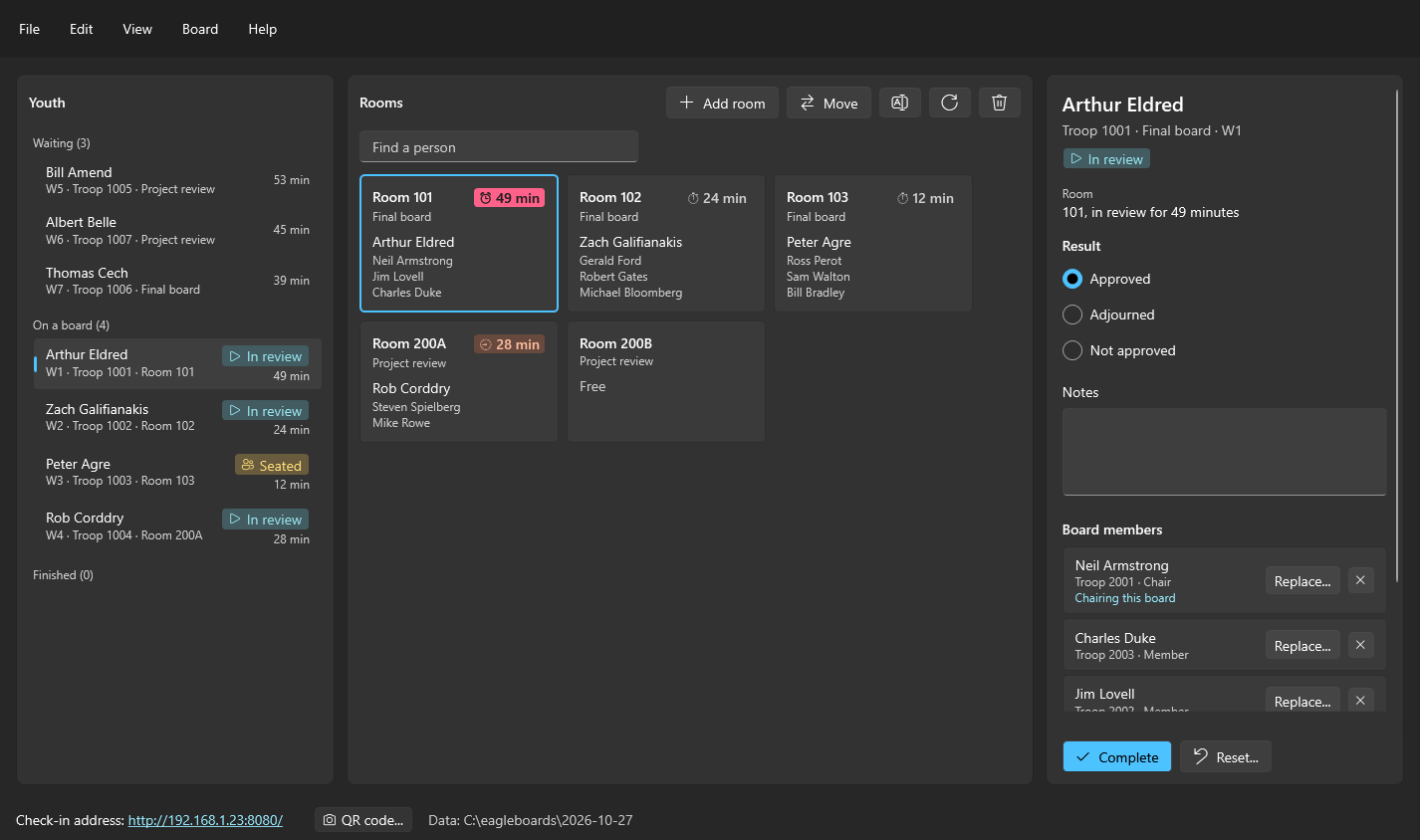
The demo event uses famous Eagle Scouts as its cast: Neil Armstrong, Jim Lovell, and Charles Duke on one board, Gerald Ford chairing another, Steven Spielberg chairing a proposal review.
System requirements
- Windows: Windows 11. Windows 10 version 22H2 should work too, without Windows 11’s translucent window background.
- Processor: 64-bit Intel or AMD (x64). ARM-based Windows PCs haven’t been tested.
- Other software: none. The exe includes its own .NET runtime, and it runs without administrator rights.
- Check-in station: any tablet, phone, or laptop with an up-to-date web browser. Nothing is installed on it.
- Disk space: a 74 MB download. The event’s records are small CSV files.
- Network: Wi-Fi the check-in stations share with the admin computer, set as a private network in Windows (see below), on port 8080 (the start-up window can change it). The internet is needed only for the SignUpGenius import.
The venue Wi-Fi has to be a private network in Windows. The first time the scheduler starts, Windows Firewall asks whether to let it on the network: allow it on private networks, which takes an administrator’s approval. Windows, however, treats a newly joined Wi-Fi network as public, and on a public network the check-in stations are still blocked. Before the event, open Settings › Network & internet › Wi-Fi, open the venue network’s properties, and set Network profile type to Private network.
Only one program can use port 8080 at a time, so don’t run the Java version on the same computer while this one is running.
Install
- Download
EagleBoards.exeunder Releases. - Put it in the data folder, such as
C:\eagleboards, or anywhere you like. Nothing is installed: the exe is the whole program. - Let Windows run it. The exe isn’t code-signed yet, so the first time Windows may say it protected your PC: choose More info, then Run anyway.
To check the download, get EagleBoards.exe.sha256 from the same release
and compare it with what certutil -hashfile EagleBoards.exe SHA256 prints
in a Command Prompt.
Moving from the Java or Mac version? It reads and writes the same data files, so an existing data folder keeps working: choose it as the Data folder when the scheduler starts.
Upgrading is replacing EagleBoards.exe with the new release. Windows
may ask once more, as in step 3. The data folder is left as it is.
Starting up
Double-click EagleBoards.exe. The start-up window asks for:
- Data folder: where the adult history and one folder per event are kept.
- Event date: defaults to today.
- Check-in network: the venue Wi-Fi. Serving only that network keeps the sign-in site off VPN and virtual-machine adapters.
- Port (8080).
- SignUpGenius API key, and whether to Import the event’s sign-ups from SignUpGenius (see SignUpGenius). Paste the key once: Windows keeps it, encrypted so only your Windows account can read it, and never in the data folder. Empty the box and press Start to forget it.
Press Start. The first time, Windows Firewall asks whether to allow the scheduler on the network: allow private networks, or the check-in stations can’t connect. Point each station’s browser at the check-in address in the window’s status bar, or press QR code… beside it and scan the code with the tablet’s camera. Then add rooms with Add room; the buttons beside it rename the selected room or switch it between final boards and project reviews.
1. People sign in
At the check-in station, a Scout taps I am a youth and an adult taps I am 21 or older. A sign-in shows up in the scheduler immediately. A Scout is asked for a name, an email address, a unit, and which review they’re here for, never a phone number or a birthdate. From the network, the lists show names and units only.
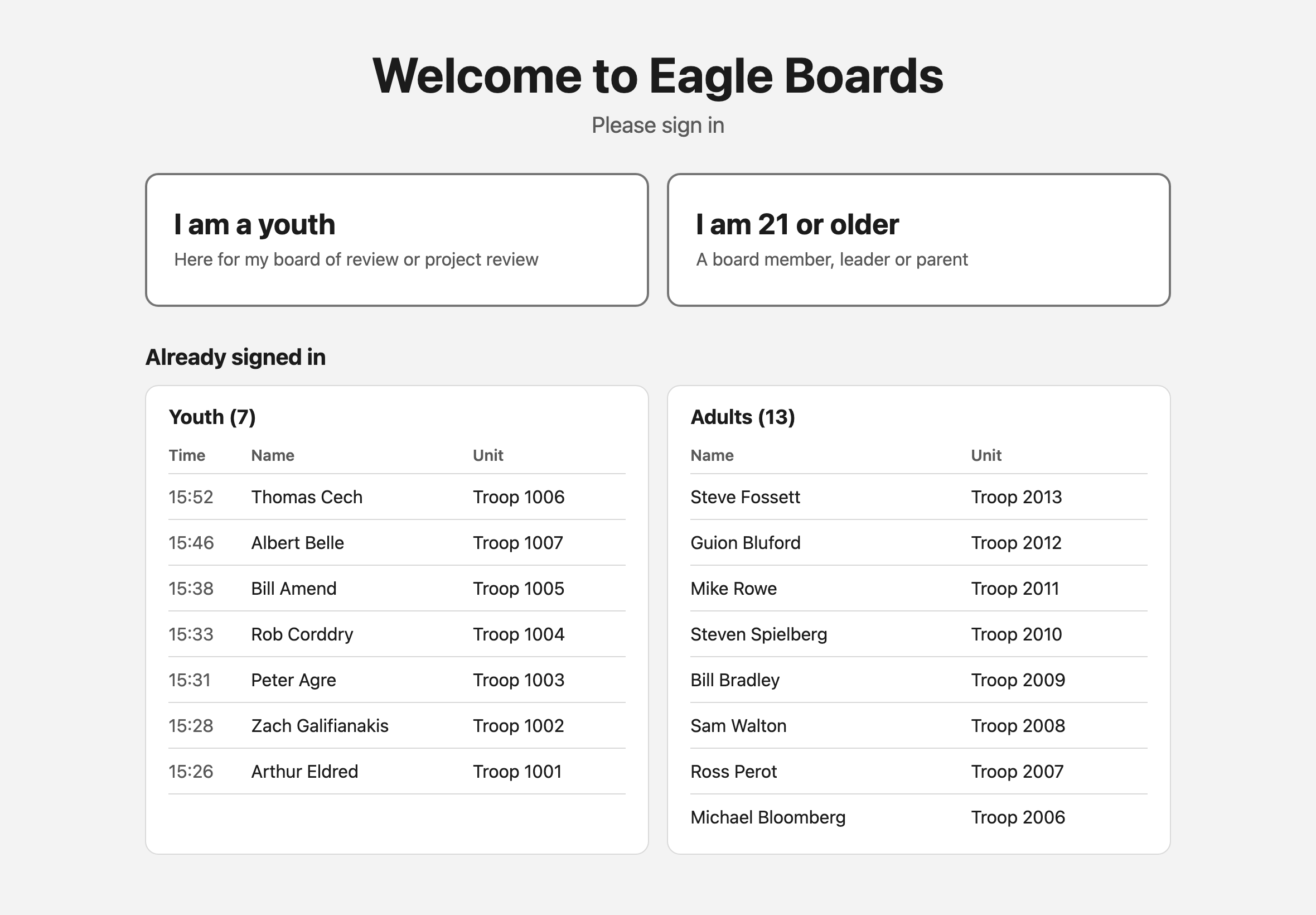
Each person appears in the Youth list the moment they register. The list holds every youth, next to the rooms, in three groups: Waiting, On a board and Finished.
2. Seat a board
Select a waiting Scout. Eagle Boards proposes a board in the details pane: a chair, enough members, and a free room of the right kind. It never picks adults from the Scout’s own unit, and it puts the adults who have waited longest first. An adult marked unavailable for that kind of board is refused, and one adult listed twice doesn’t count as two members. A Wood Badge pentagon follows the name of an adult who has it, and a warning triangle marks one from the Scout’s own unit.
Change the board there: click an adult under Add members to add them (Find an adult narrows the list), and remove one from Board members to drop them. Fill the rest completes the board around your own picks; Start over clears it and proposes a fresh one. Press Seat board once the room and members look right.
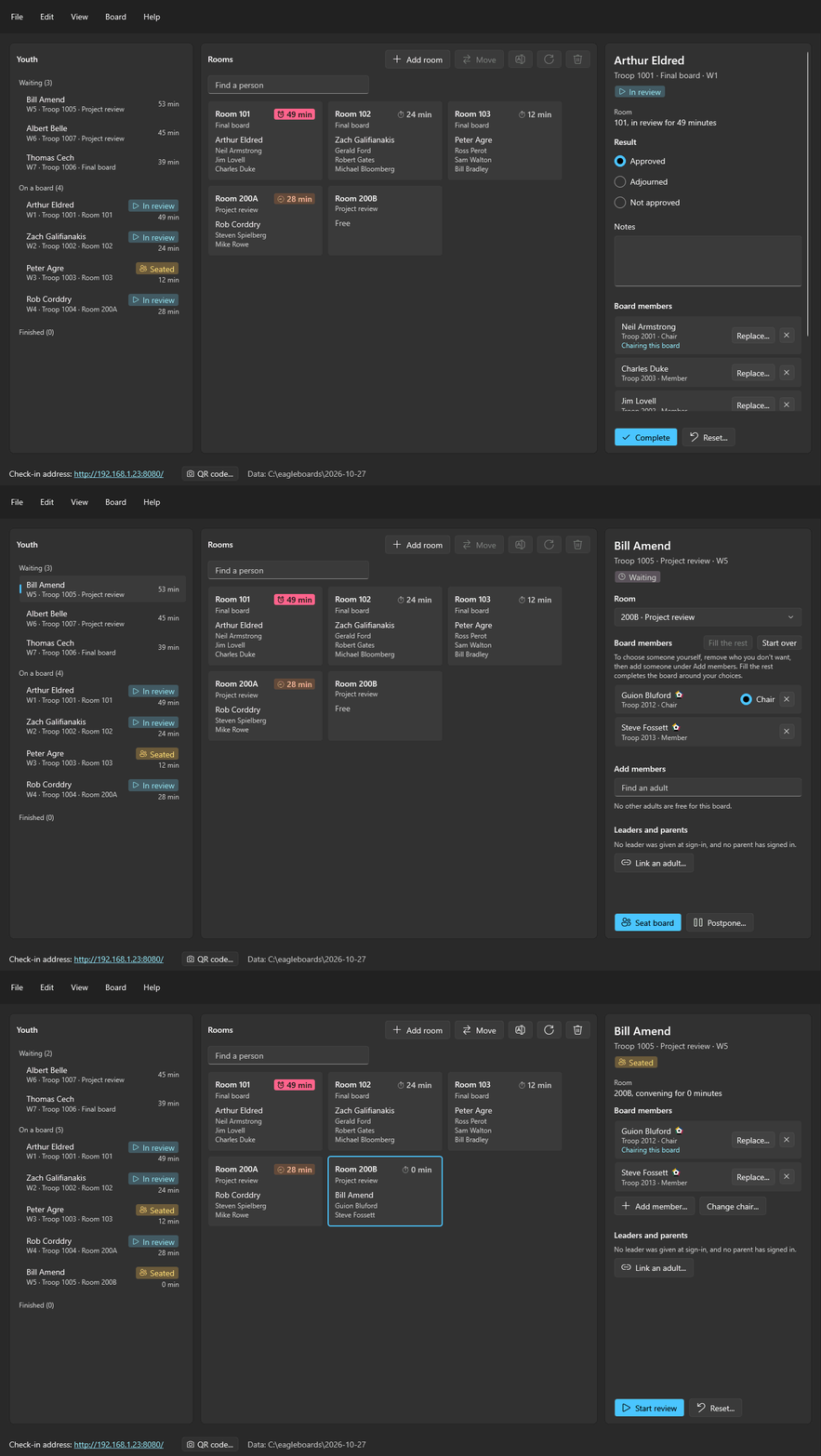
Every step can be taken back with Edit › Undo (Ctrl+Z): seating, starting, completing, moving a room, renaming a room, and marking an adult gone home. Only Reset, Postpone, and Remove room ask first.
The Board menu holds the same steps as the buttons, for the youth who is open: the next step, named for it (Seat board, Start review, or Complete; Ctrl+Enter), Postpone, Reset, Link an adult, and Unlink. Below those are the commands for the selected room, such as Rename room (F2) and Remove room. Each is available when its button is.
3. Start the review and complete it
When the members have finished reading, press Start review. On a board of review it first reminds you to fetch whoever introduces the Scout, and says where they are; a project review has no introduction. When the board comes out, choose the result, add any notes, and press Complete. The step’s button sits at the foot of the details pane, and Ctrl+Enter presses it from anywhere on the page, the notes included. Help › Eagle Boards help (F1) walks through each step.
If someone has to leave mid-board, the details pane still has Add member…, Replace…, and Change chair…, so the room’s timer keeps running instead of resetting.
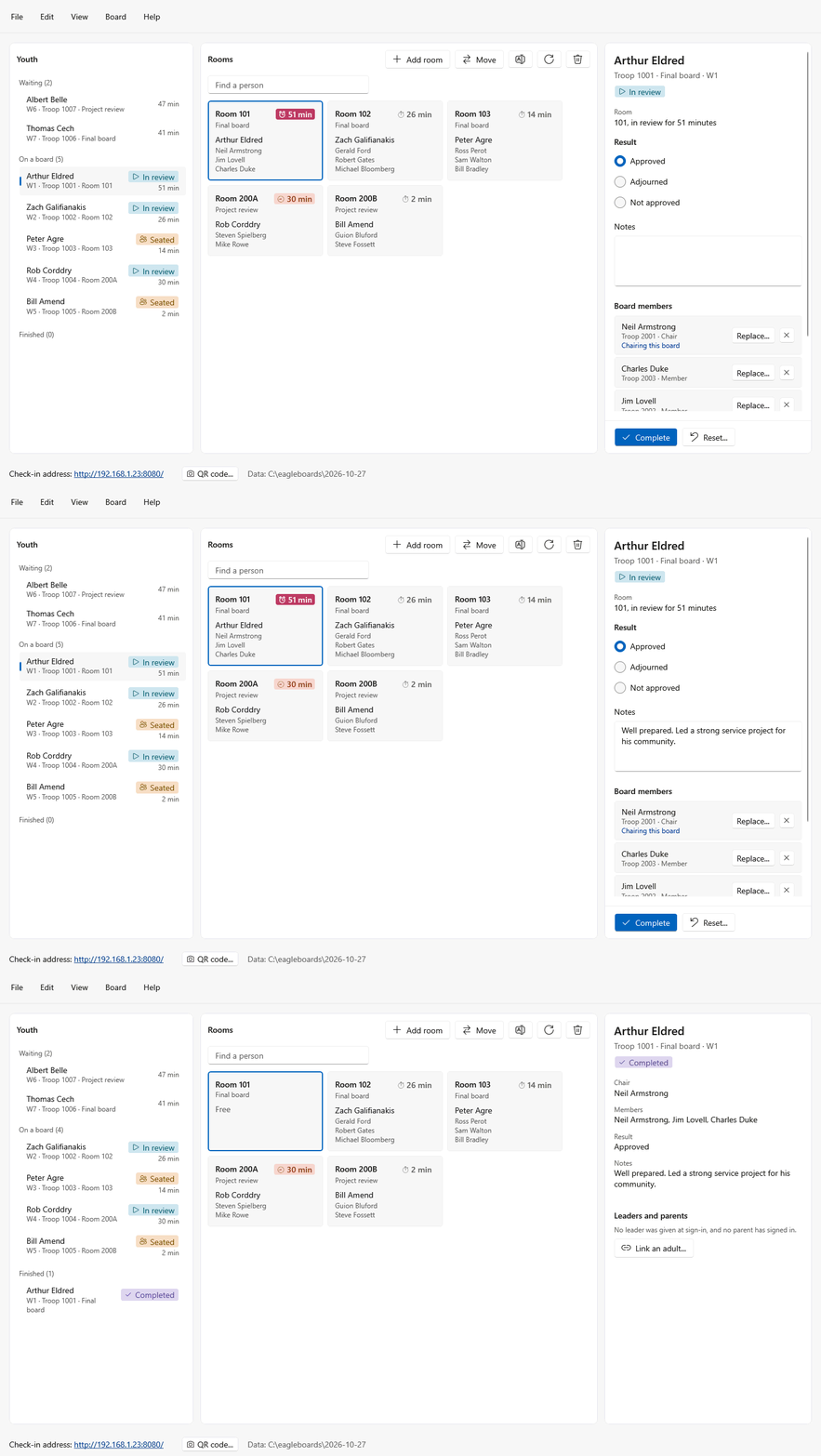
To find which room someone is in, type their name in Find a person above the rooms (Ctrl+F). The rooms narrow to that youth’s or adult’s, and for anyone not in a room it says where they are: waiting, finished, or gone home.
The tables
View in the menu bar switches the window between the Event page (Ctrl+1) and a page for each table (Ctrl+2 to Ctrl+8), most of them edited in place:
- Results, to correct a result recorded wrongly. File › Save report… (Ctrl+S) saves the results as a CSV file for Excel.
- Adults, to change someone’s roles, such as making a member a Chair. Add adult… signs in an adult who would rather not use the tablet, filled in from a search of the adult history.
- Youth, Pre-registered, and Rooms.
- Adult history CSV, read-only. Sign in for today puts the adult selected there on today’s list, as if they had signed in at the tablet.
- Approved proposals, the project proposals approved at earlier events in the data folder, for a Scout who comes to a final board without the signed proposal page.
A youth’s status and a board’s members aren’t edited there: the Event page’s steps change those, so a room and its members are always freed together.
Closing the scheduler stops the check-in site. Everything is saved as it happens; there is no save step. Help › Donate… opens the ways to support the project in Settings.