Mac Version
A native Mac app for Apple silicon Macs (M1 or later) running macOS 14 Sonoma or later. The district advancement chair works in the app’s window. The check-in station is any tablet’s web browser on the same Wi-Fi. Only the sign-in pages are on the network; the scheduler, the records, and the settings stay on the Mac.
Get it: github.com/deekayen/eagleboards-macos, under Releases; see Install below. The same guide is in the app under Help › Eagle Boards Help.
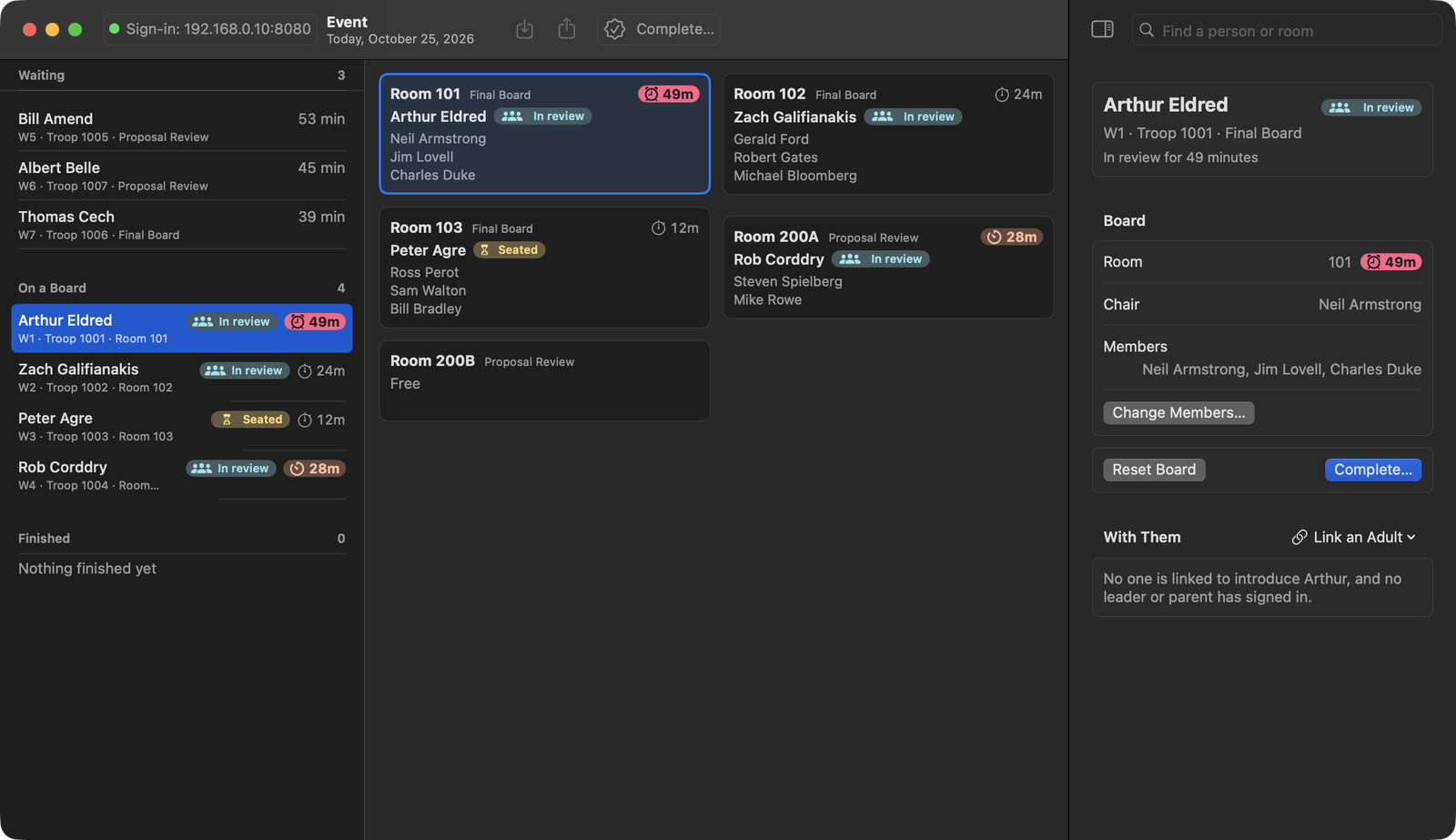
The demo event uses famous Eagle Scouts as its cast: Neil Armstrong, Jim Lovell, and Charles Duke on one board, Gerald Ford chairing another, Steven Spielberg chairing a proposal review, the same scenes as the Java and Windows walkthroughs.
System requirements
- Mac: one with Apple silicon, M1 or later. Intel Macs aren’t supported; on one, use the Java version.
- macOS: macOS 14 Sonoma or later.
- Other software: none.
- Check-in station: any tablet, phone, or laptop with an up-to-date web browser, on the same Wi-Fi as the Mac. Nothing is installed on it.
- Disk space: a 6 MB download. The event’s records are small CSV files.
- Network: Wi-Fi the tablet can reach the Mac on, on port 8080 (change it in Settings › General). The internet is needed only for the SignUpGenius import.
Only one program can use port 8080 at a time, so don’t run the Java version on the same Mac while Eagle Boards is open.
Install
- Download
Eagle-Boards-followed by the release date and.zip, under Releases. - Unzip it (Safari does this by itself) and drag Eagle Boards into the Applications folder.
- Open it the first time. Eagle Boards isn’t notarized by Apple, so macOS stops it the first time. Double-click it and close the warning. Then open System Settings › Privacy & Security, scroll down to Security, click Open Anyway beside the message about Eagle Boards, and confirm. On macOS 14 Sonoma, Control-clicking the app and choosing Open does the same. After that, it opens normally.
- Choose where to keep its data. The first time it opens, Eagle Boards asks. Use Documents › Eagle Boards is fine, or pick a folder of your own. The folder holds personal information, some of it about minors, so keep it private.
Moving from the Java or Windows version? Eagle Boards reads and writes
the same data files. In step 4, choose the folder the other version used,
the one holding Master_AdultHistory.csv and the dated folders.
Upgrading is replacing the app in Applications with the new release and approving it once more, as in step 3. The data folder is left as it is.
The window
The Event page has three parts, all on screen at once, and no sidebar:
- The youth list, a narrow column on the left: every Scout who has signed in, in three groups with their counts: Waiting in sign-in order, On a Board by room, and Finished with the most recent first. Drag the line beside it to widen it.
- The room cards fill the rest of the window. Each shows who’s in the room, their board’s members one per line, and the room’s timer, so a room is never out of sight while you work the queue.
- The inspector on the right follows the selected Scout: their board, their room, and who came with them.
To find which room someone is in, a Scout or an adult, type part of their name in the search at the top right. The room cards narrow to the rooms holding a match, or a room by that name, and a line above them says where anyone found in no room is: waiting, not on a board, gone home, finished, or postponed. Return opens the room, or the Scout.
The View menu chooses the page: Event, then the event’s records, each edited where it’s shown (see The records), from ⌥⌘1 to ⌥⌘8. The Dock icon shows how many Scouts are waiting, and a notification tells you when a room goes overdue while you’re in another app.
Starting up
Open Eagle Boards. It opens today’s event and starts the sign-in station at once. If macOS asks whether Eagle Boards may accept incoming network connections, click Allow, or the tablet can’t reach it.
Click the green Sign-in address at the top left of the window. Scan the QR code with the tablet’s camera, or type the address into its browser. For a second display or a projector, Window › Sign-In Code shows the code as large as the window.
Choose Room › Add Room… (⇧⌘N) and add each room, marked Final Board or Proposal Review by what it’s used for today. After the first event, Room › Copy Rooms From brings back an earlier event’s list. Right-click a room card to rename it, move its board to another room, or change what it’s used for.
1. People sign in
At the tablet, a Scout taps I am a youth and an adult taps I am 21 or older. Scouts who reserved on SignUpGenius, and adults who have served before, are recognized by email and the rest of the form fills itself in. A Scout is never asked for a phone number or a birthdate. An adult can say they’re working on a Wood Badge ticket item; the app marks them with the Wood Badge emblem wherever boards are drawn up.
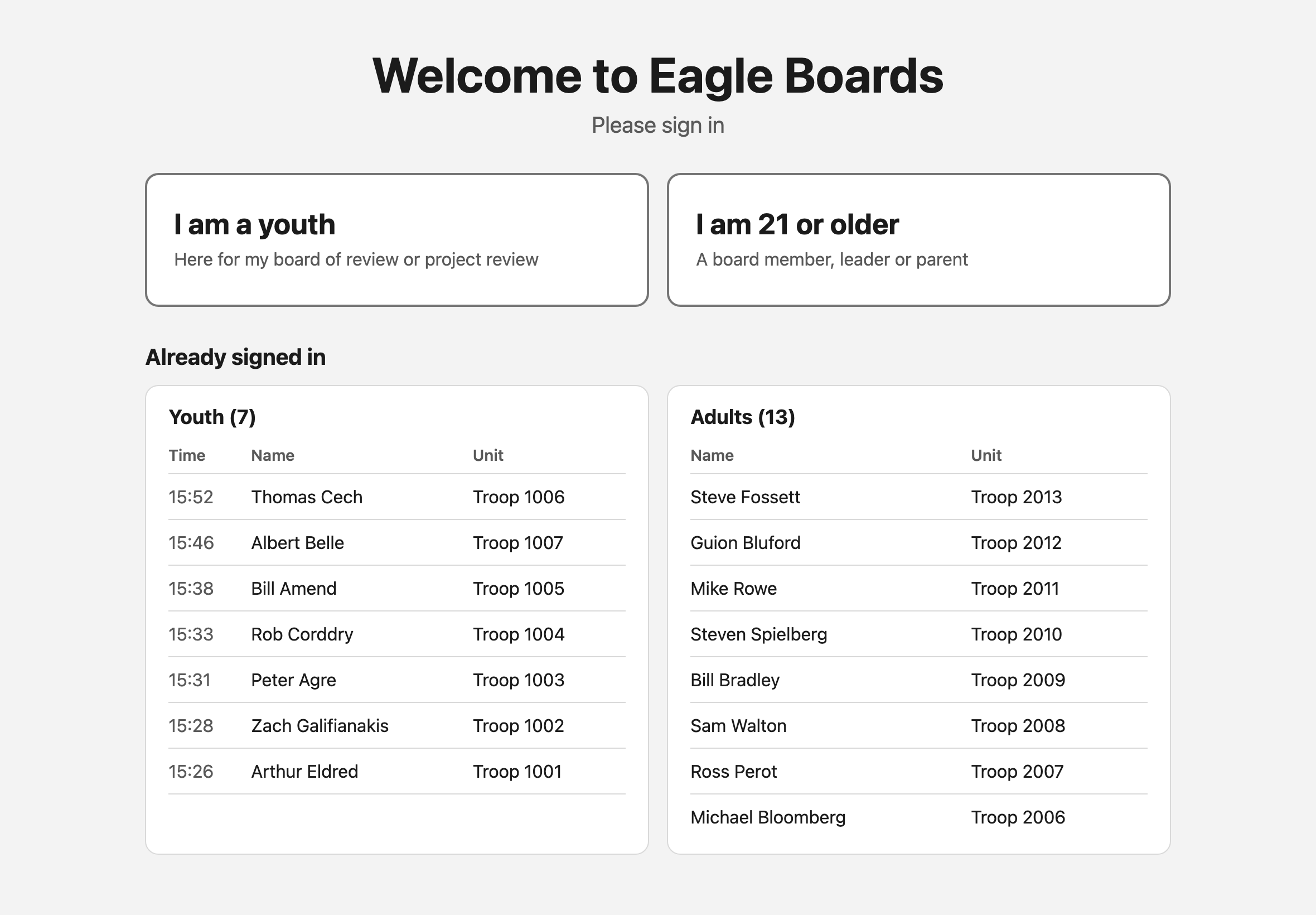
Each person appears on the Mac the moment they register. Scouts are numbered
P1, P2… if they pre-registered and W1, W2… if they walked in. An adult
who would rather not use the tablet can be signed in on the Mac with Adult ›
Add Adult…, which searches the adult history and fills the form in for
someone who has served before.
2. Seat a board
Select a waiting Scout. Eagle Boards proposes a board in the inspector: a chair, enough members, and a free room of the right kind. It never picks adults from the Scout’s own unit, and it puts the adults who have waited longest first.
Change the board in the inspector: click an adult in the free list to add them (Find an adult narrows the list), and − takes one off. Fill the Rest completes the board around the adults you chose, Start Over begins again from a fresh proposal, and Clear Board empties it. You can also select several adults on the Adults page and choose Adult › Add to Board (⌘B). To pick every board yourself, set Settings › General to start each Scout with an empty board.
Press Seat Board… (⌘↩), or drag the Scout onto a free room card. The sheet lists anything that stops the board, such as too few members, no qualified chair, or someone already on another board, and anything worth a second look. Choose the chair and press Seat Board. The members take the room and the paperwork; the Scout waits outside.
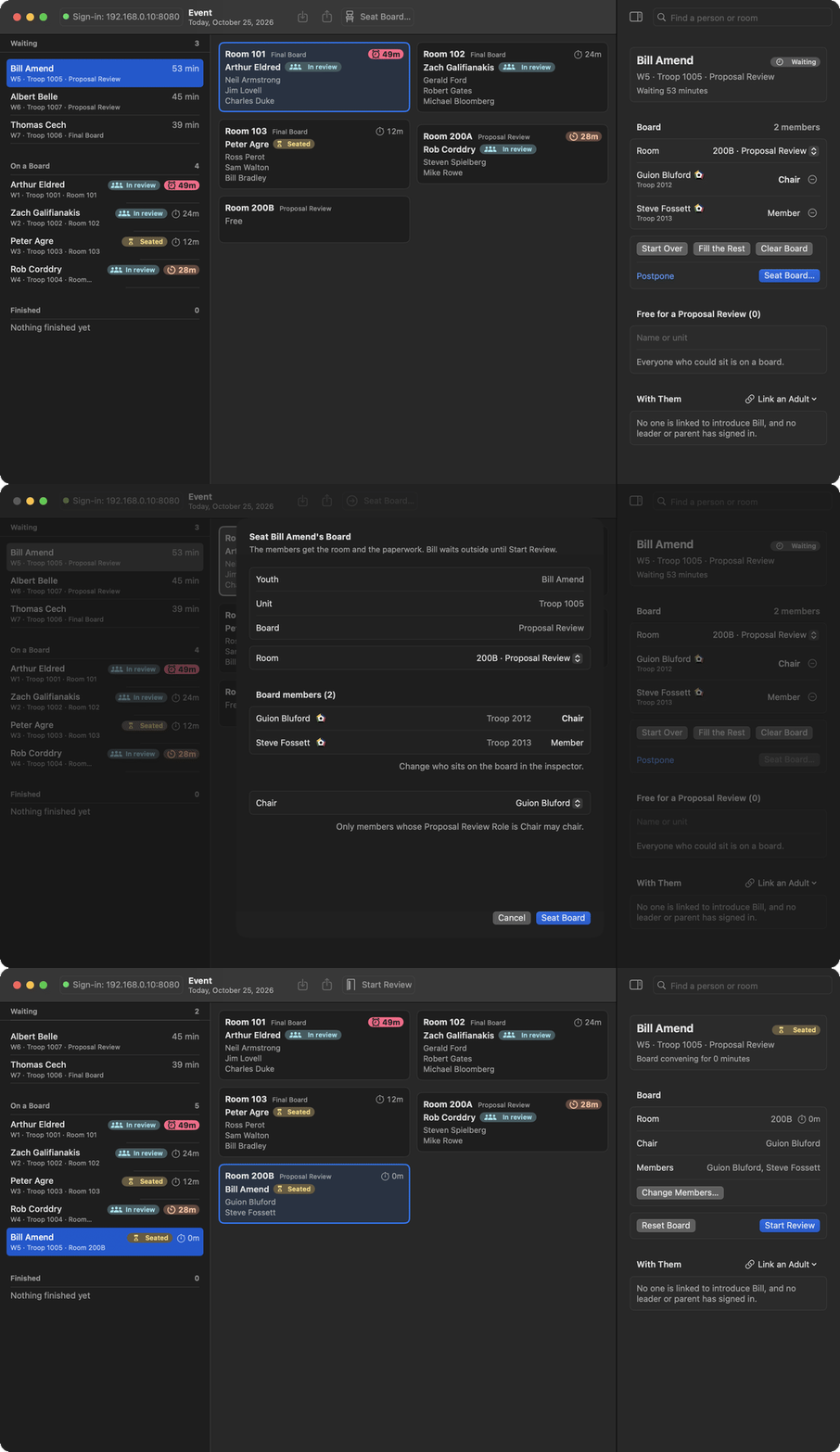
3. Start the review and complete it
When the members have finished reading, press Start Review (⌘↩ again). On a board of review the confirmation names whoever introduces the Scout, or with no one linked their leader if they signed in, and says where they are, so they can be fetched; a project review has no introduction. When the board has finished, press Complete…, choose the result, and add any notes.
If someone has to leave mid-board, select the Scout and press Change Members… in the inspector. It adds or removes members, or hands the chair to another member qualified to chair, under the same rules as seating, and the room’s timer keeps running instead of resetting.
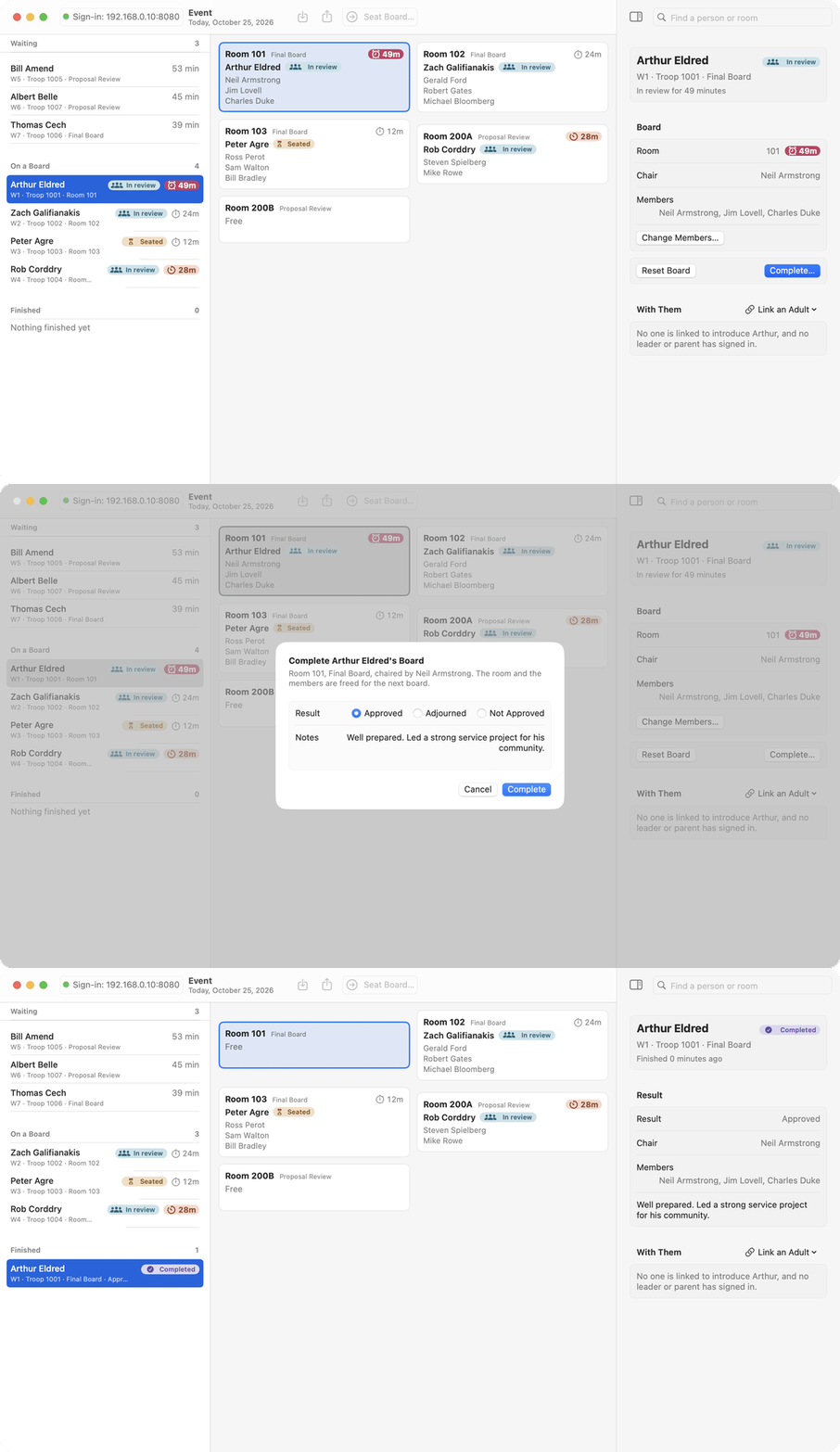
Made a mistake? Edit › Undo takes back the last step, whether seating, starting, completing, postponing, or resetting a board, changing its members, disabling an adult, or a change to the rooms.
The records
The rest of the View menu is a page for each of the event’s tables. A name, unit, note, or role is changed where it’s shown; who sits on a board, which room anyone is in, and a Scout’s status change only through the Event page’s steps.
| Page | What it holds |
|---|---|
| Results (⌥⌘2) | Every board and its result; correct a result or its notes here |
| Adults (⌥⌘3) | The adults signed in; promote someone to chair, or Add Adult at the foot |
| Youth (⌥⌘4) | Every Scout signed in, in sign-in order |
| Pre-Registered (⌥⌘5) | The SignUpGenius reservations |
| Adult History CSV (⌥⌘6) | Every adult who has ever signed in, read only; double-click someone to sign them in for today |
| Rooms (⌥⌘7) | What each room is used for, with Add Room at the foot |
| Approved Proposals (⌥⌘8) | Every project proposal approved at an earlier event, however long ago, for a Scout who comes without the signed page: who, when, and by whom |
The room timers
Each busy room shows the minutes since its last step, beside a clock. A room on time shows a stopwatch. A room running long shows a timer clock on an orange tint, and an overdue room an alarm clock on a solid pink-red fill, so the two late states differ in shape as well as color.
While a board reads the packet, the room is overdue after 30 minutes. Once the Scout is in the room, a final board runs long at 30 minutes and is overdue at 45. A proposal review runs long at 25 and is overdue at 40. They are prompts to go check on the room, not limits. Change the times under Settings › Timers; the colors aren’t a setting.
Settings and after the event
The SignUpGenius API key lives in Settings › SignUpGenius and is kept in the macOS keychain. File › Export Board Results saves the event as a spreadsheet (CSV). Everything is saved as it happens.
Eagle Boards is free. Help › Donate… lists the ways to support the project, with a Venmo QR code a phone can scan.