Java Version
The Java version is the original version of the scheduler. It’s a single .jar
file that runs on any laptop or a Raspberry Pi with Java 21 or newer. Every
screen, for the door and for running the event, is a web page served from that
one computer, and the admin pages follow the computer’s light or dark setting.
Get it: github.com/deekayen/eagleboards-java, under Releases; see Install below. The repository’s README is the operator’s manual.
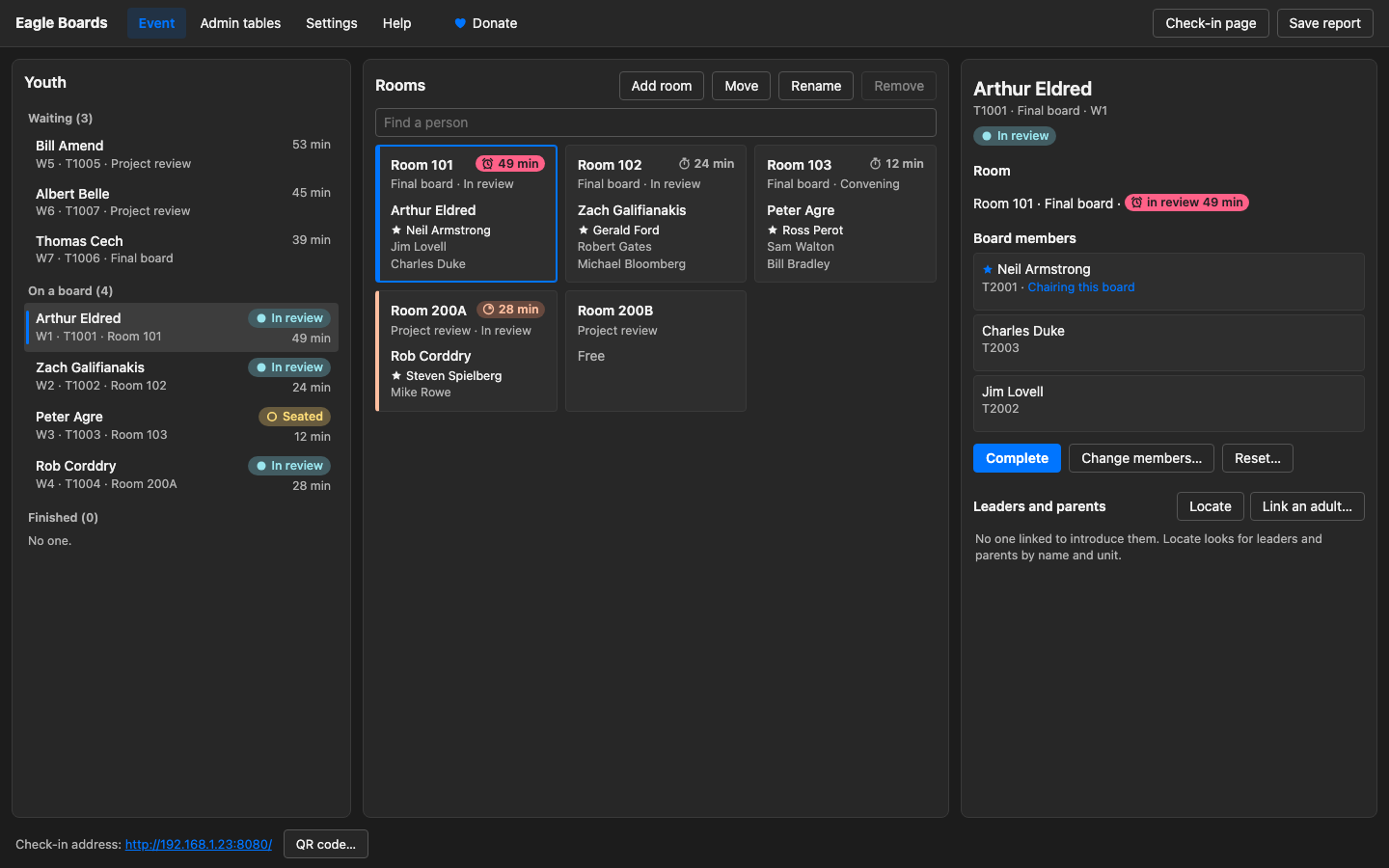
The demo event uses famous Eagle Scouts as its cast: Neil Armstrong, Jim Lovell, and Charles Duke on one board, Gerald Ford chairing another, Steven Spielberg chairing a proposal review, the same scenes as the Mac and Windows walkthroughs.
System requirements
- Admin computer: Windows, macOS, or Linux, including a Raspberry Pi running a 64-bit operating system. Every change is tested on Windows and Linux with Intel or AMD processors, on Linux with ARM processors (the Raspberry Pi), and on macOS with Apple silicon. Anything else that runs Java 21 should work too, including an Intel Mac, which the Mac version doesn’t support.
- Java: Java 21 or newer. The Java runtime (JRE) is enough; the full JDK is only needed to build it from source.
- Browser for the admin pages: Chrome or Edge 114, Firefox 125, Safari 17, or later. The pages’ right-click menus need a browser at least that new. It can run on the admin computer or on any computer on the same network.
- Screen: optional. Without one, as on a Raspberry Pi tucked under the table, the district advancement chair works from a browser on another computer.
- Check-in station: any tablet, phone, or laptop with an up-to-date web browser. Nothing is installed on it.
- Disk space: about 6 MB for the program. The event’s records are small CSV files.
- Network: one the check-in station can reach the admin computer on, on
port 8080 (change it with
-port). The internet is needed only for the SignUpGenius import.
Only one program can use port 8080 at a time, so don’t run the Java version and the Mac or Windows version on the same computer at once.
Install
Install Java 21 or newer, if the computer doesn’t have it. Eclipse Temurin is free, with installers for Windows, macOS, and Linux, including 64-bit ARM for a Raspberry Pi. To check, open a terminal (Command Prompt on Windows) and type
java -version: it should say 21 or higher.Make a folder for the scheduler, such as
C:\eagleboards. It becomes the data folder: each event gets a dated folder inside it, next to the adult history and the timer settings.Download the jar. Under Releases, download
eagleboardscheduler-followed by the release date and.jar. Put it in the folder and rename iteagleboardscheduler.jar, so the shortcut below still works when you swap in a newer one.Make a shortcut. On Windows, open Notepad, paste these three lines, and save them in the folder as
Eagle Board Scheduler.bat:cd /d "%~dp0" java -jar eagleboardscheduler.jar -w -a Master_AdultHistory.csv pauseDouble-click it to start the program. On a Mac or Linux, open a terminal in the folder and type the
javaline instead.
The two options on the java line matter:
-a Master_AdultHistory.csvkeeps one adult history for every event, so adults who served last month are recognized this month. Without it, each event starts a history of its own. The first time, the program starts an empty history and says where it put it.-wopens the small window with the check-in address. Leave it off on a computer with no screen, or the program won’t start.
Add these to the end of the same line when you need them:
-sugkey, a space, and the API key, to import from SignUpGenius each time it starts. The key works like a password, so keep the shortcut out of shared folders.-bind 192.168.(or whatever the venue Wi-Fi’s addresses start with) if the address window lists more than one address, as it does with a VPN or virtual machines. The program then serves only that network.
The repository’s RUNNING.md lists every option.
Moving from the Mac or Windows version? They use the same files. Put the
jar and the shortcut in the folder that version used, the one holding
Master_AdultHistory.csv and the dated folders.
Upgrading is replacing eagleboardscheduler.jar with the new release,
renamed the same way. The data folder is left as it is.
Starting up
Open the Eagle Board Scheduler shortcut you made when installing. Java may
ask to allow access on the network: allow it, or the check-in station can’t
connect. Two windows appear: a black console window (leave it alone, because
closing it stops the program) and a small grey window showing an address
such as http://192.168.1.50:8080. Type that address into the check-in
station’s browser.
On the admin computer, open the same address with /scheduler on the end.
That’s the Event page, where the event is run. The bar across the top of
every page reaches the rest:
| In the top bar | What it is |
|---|---|
| Event | The youth, the rooms, and building and running each board |
| Admin tables | Every record as an editable table: correct a result, promote someone to chair, add an adult |
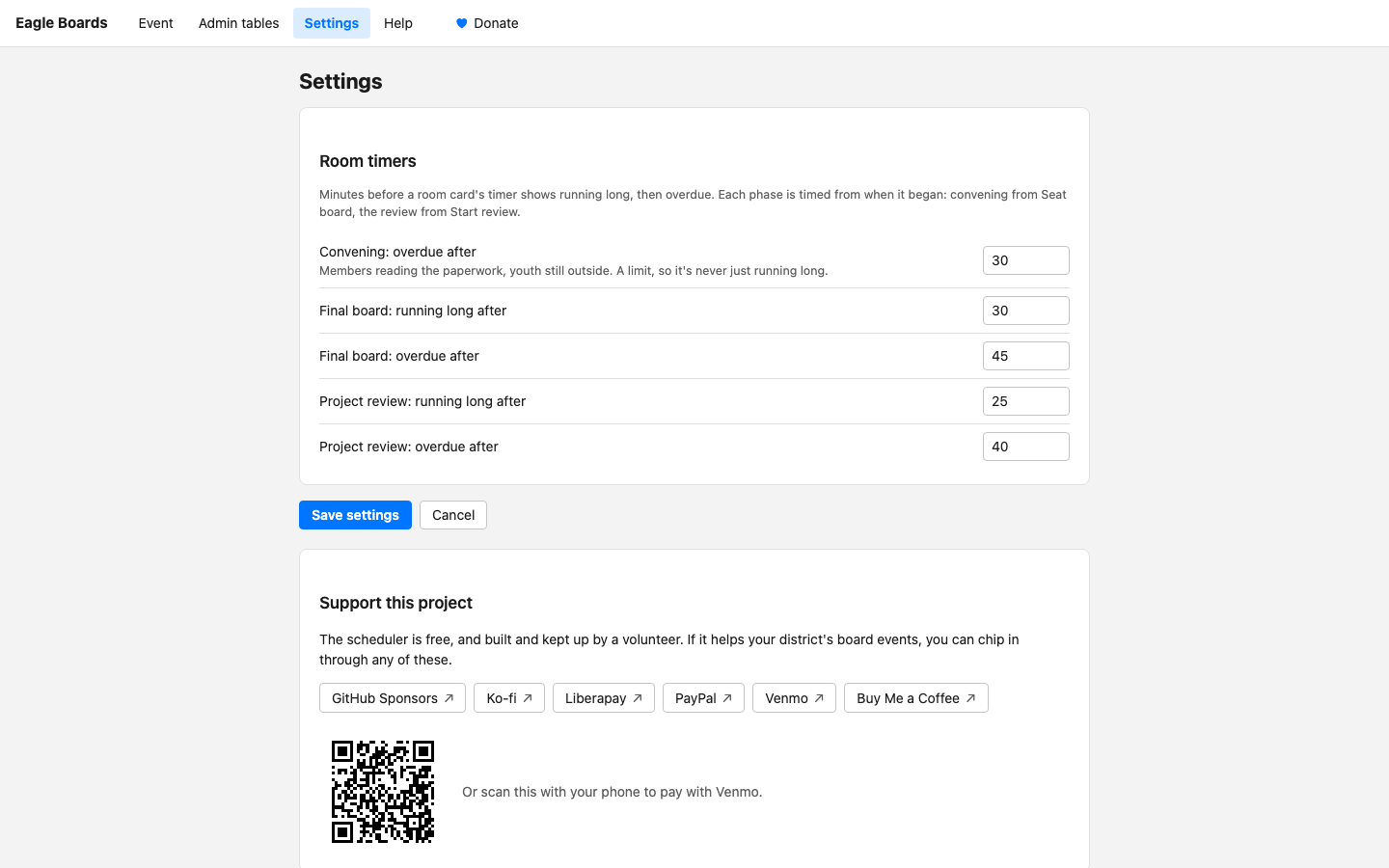
| Settings | The room timer times, and the ways to support the project |
| Help | How to run an event, inside the program |
| Check-in page | What the tablet at the door shows |
| Save report | Every youth’s board and result as a spreadsheet |
The footer shows the check-in address, and QR code… beside it shows the address as a code the tablet’s camera can open. Nothing needs refreshing: a sign-in at the door appears on the Event page at once.
Before anyone arrives, press Add room for each room, marked for final boards or project reviews by how you’ll use it at this event. Rename, Move, and Remove act on the selected room card. Right-clicking a room switches it between final boards and project reviews.
1. People sign in
A tablet or spare laptop at the door. A Scout taps I am a youth and an adult taps I am 21 or older; the lists below show who’s here.
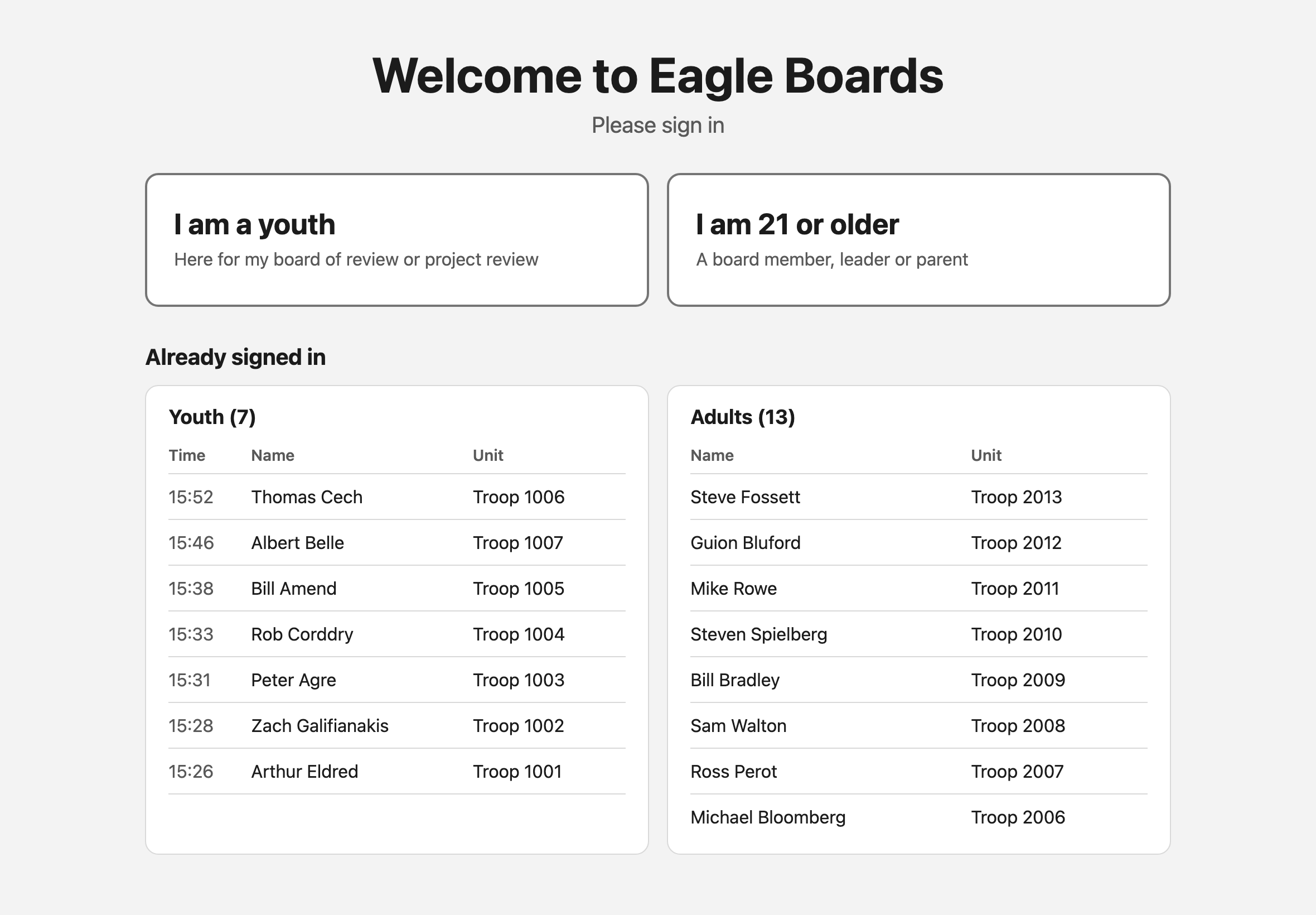
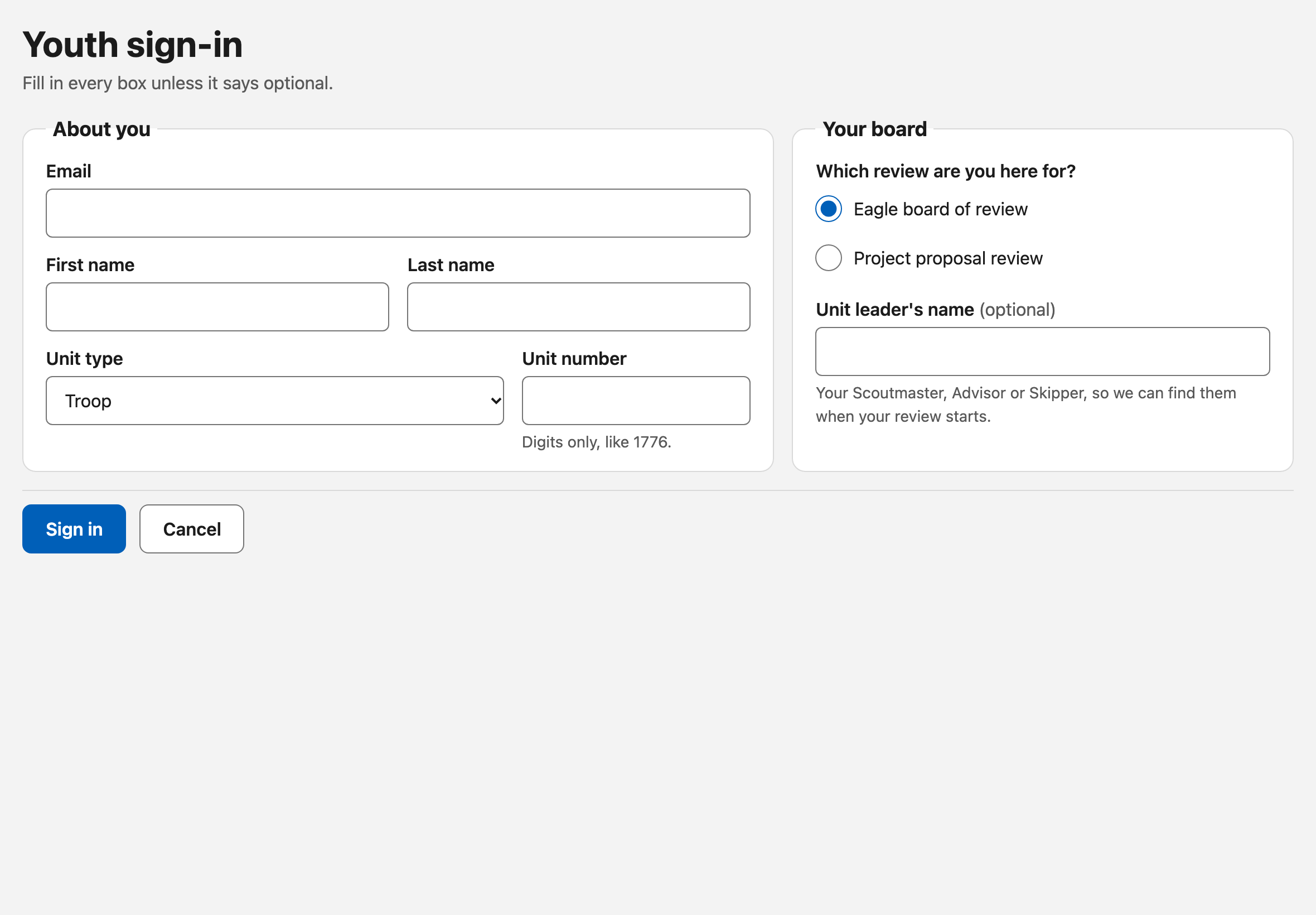
The forms ask only what running the event needs. A Scout gives a name, an email address and a unit, picks which review they’re here for, and can name their unit leader; they’re never asked for a phone number or a birthdate. An adult also gives a phone number, says which kinds of board they’ll sit on, and can check the Scout they’ll introduce to their board (parents leave that blank). On a laptop each form fits the window, with Sign in always at the bottom.
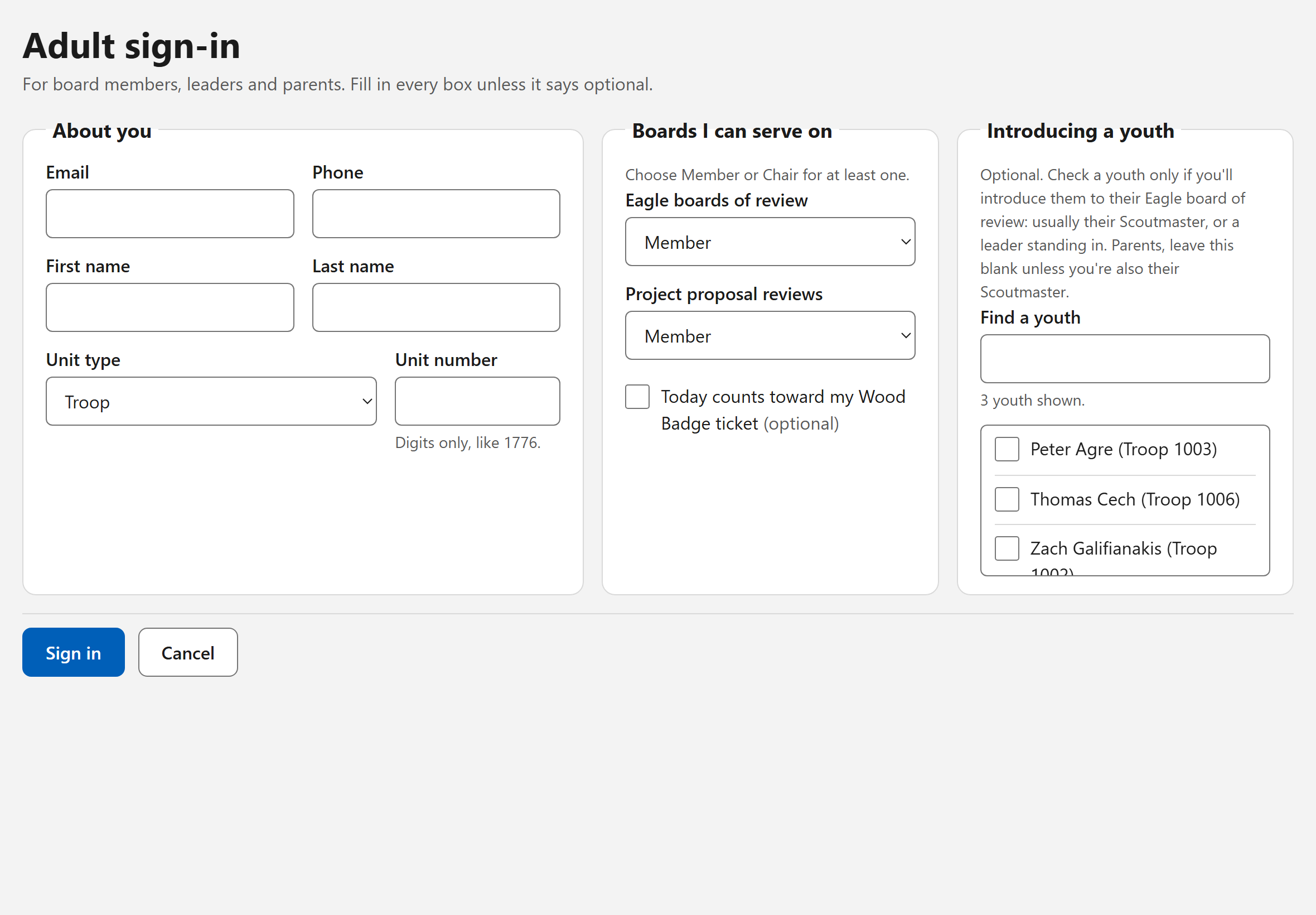
Each Scout appears in the Event page’s Youth list the moment they sign in. The list holds everyone who has signed in, in three groups, each with its count: Waiting in sign-in order, On a board by room, and Finished with the most recent first.
To find which room someone is in, a Scout or an adult, type part of their name in Find a person over the room cards (Ctrl+F goes there). The cards narrow to the rooms holding a match, or a room by that name, and a line says where anyone found in no room is: waiting, not on a board, gone home, finished, or postponed. Enter opens the room, or the Scout.
An adult who would rather not use the tablet can be signed in from Admin tables: Add adult… on the Adults tab searches the adult history and fills the form in for someone who has served before.
2. Seat a board
Select a waiting Scout. Their board is built in the details pane on the right: a free room of the right kind, a chair, and enough members. The program picks with the whole waiting line in mind, never uses adults from the Scout’s own unit if it can help it, and puts the adults who have waited longest first.
Change the board there: remove someone with ×, press Add beside an adult under Add members, and Fill the rest completes the board around your own picks. The rules are checked as you go, under Board members: too few or too many members, nobody who may chair, someone from the Scout’s own unit. Press Seat board (or Ctrl+Enter) once it’s right. The members go to the room with the paperwork; the Scout waits outside.
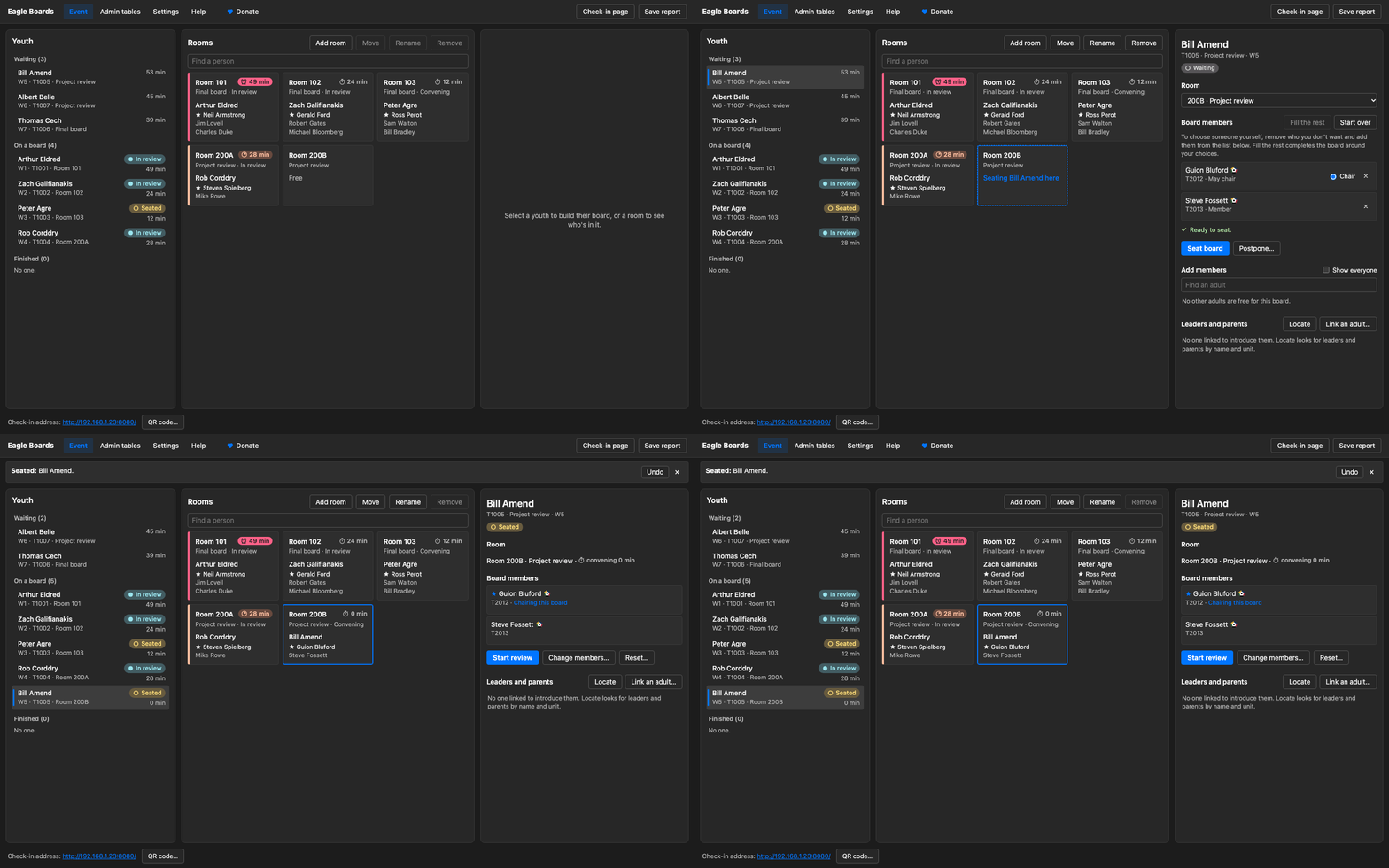
Every step can be taken back with Undo in the message that follows it, or Ctrl+Z. Only Reset, Postpone, and removing a room ask first.
3. Start the review and complete it
When the members are ready, select the Scout and press Start review. On a board of review it first reminds you to fetch whoever introduces the Scout, and says where they are, so someone can walk the Scout in; a project review has no introduction. Under Leaders and parents, the details pane shows who introduces the Scout; Locate looks for the Scout’s leaders by name and unit. If someone has to leave mid-board, Change members… swaps them without restarting the room’s timer.
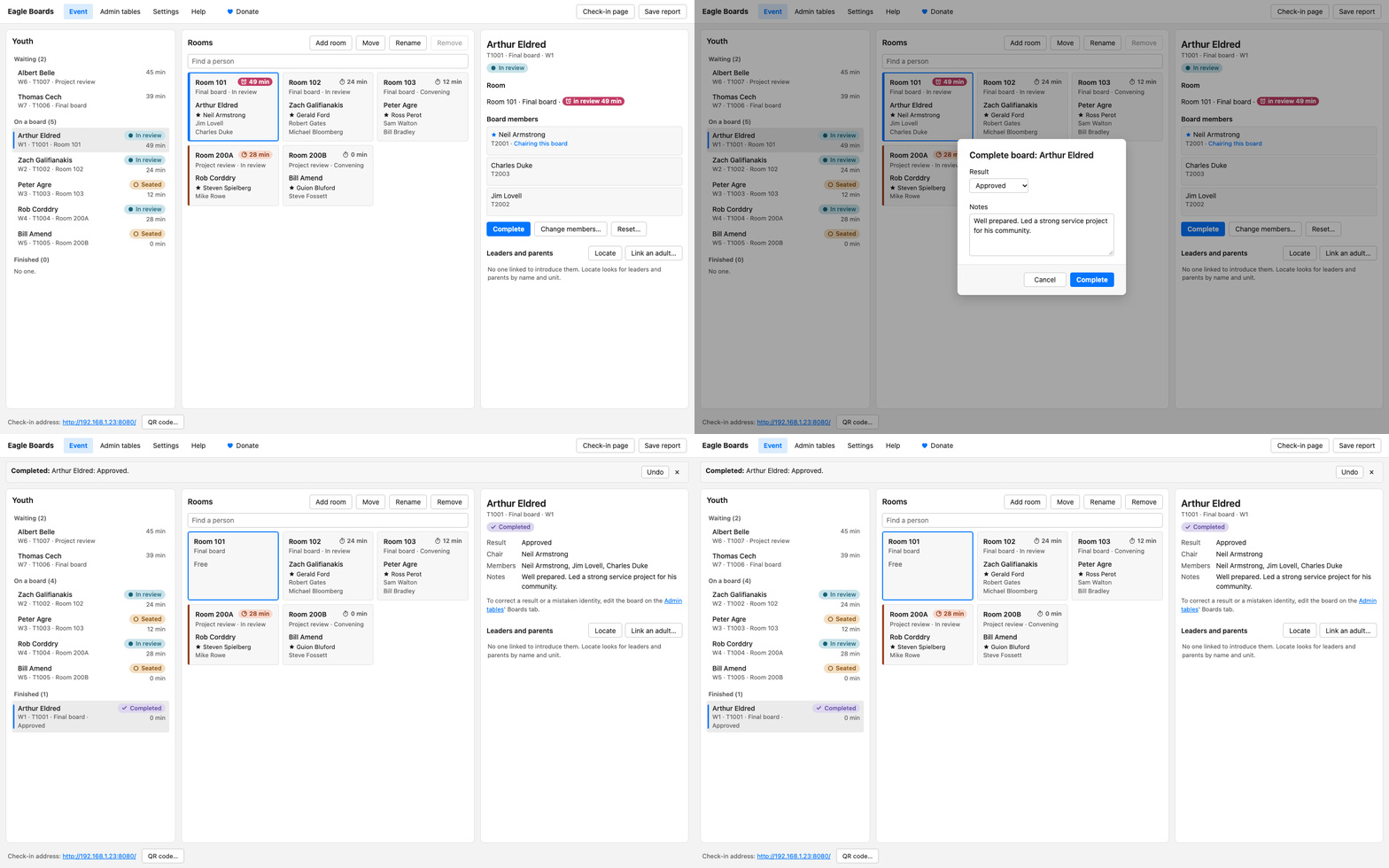
When the board comes out, press Complete, choose the result, add any notes, and the room and members are free for the next Scout.
Admin tables and settings
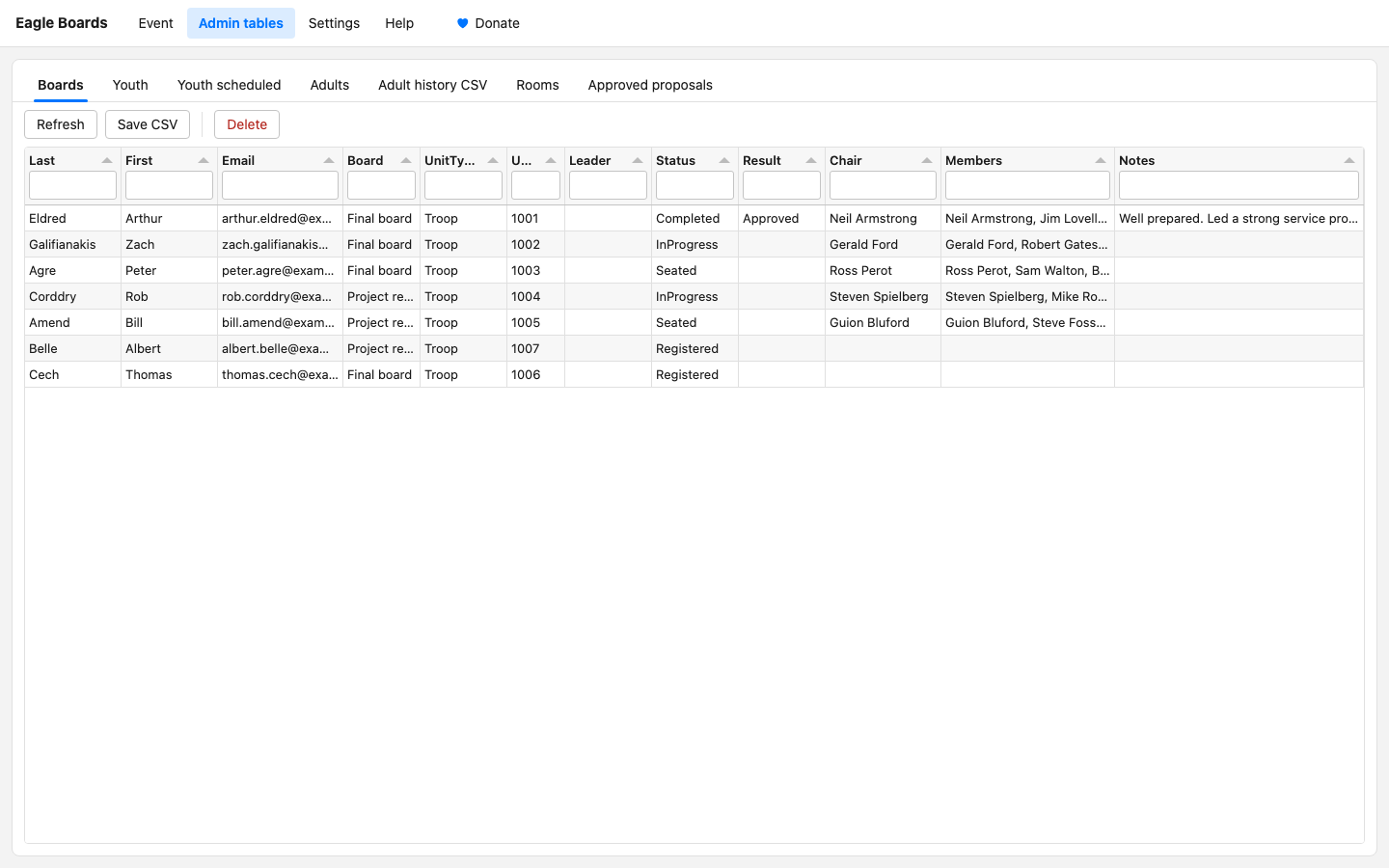
Admin tables hold every record as an editable table, in tabs: Boards, Youth, Youth scheduled (the pre-registrations), Adults and Rooms. A result or its notes is corrected on Boards, and an adult is promoted to chair on Adults; a change to an adult’s name, unit, or roles reaches the adult history too. A Scout’s status is read-only in every tab: it changes only through the Event page’s steps, which take and free a room and its members.
Two tabs are read only. Adult history CSV is every adult who has ever signed in, with the date of their last event; Sign in for today puts the selected adult on this event’s list. Approved proposals lists every project proposal approved at an earlier event in the data folder, however long ago, for a Scout who comes to their board of review without the signed page: who, their unit, when, the chair, and the other members.
Settings has the room timers and, further down, the Guide to Advancement passages their defaults come from: a board still reading the packet is overdue at 30 minutes; a final board with the Scout is running long at 30 and overdue at 45. A timer running long shows a timer clock on an orange tint, and an overdue one an alarm clock on a pink-red fill, so the two differ in shape as well as color. Donate, in the top bar, opens the ways to support the project on the same page.