Scheduler Software
Free, open-source check-in and room assignment for board of review events, in three versions (Java, Mac, and Windows) that share the same data files.
A board of review event can run on a clipboard: a sign-in sheet at the
door, a paper grid of rooms, and one person trying to remember which adults
already sat on a board, which are from the Scout’s own troop, and how long
room 203 has been in there. The Eagle Board Scheduler replaces the
clipboard. Scouts and adults sign themselves in on a tablet at the door.
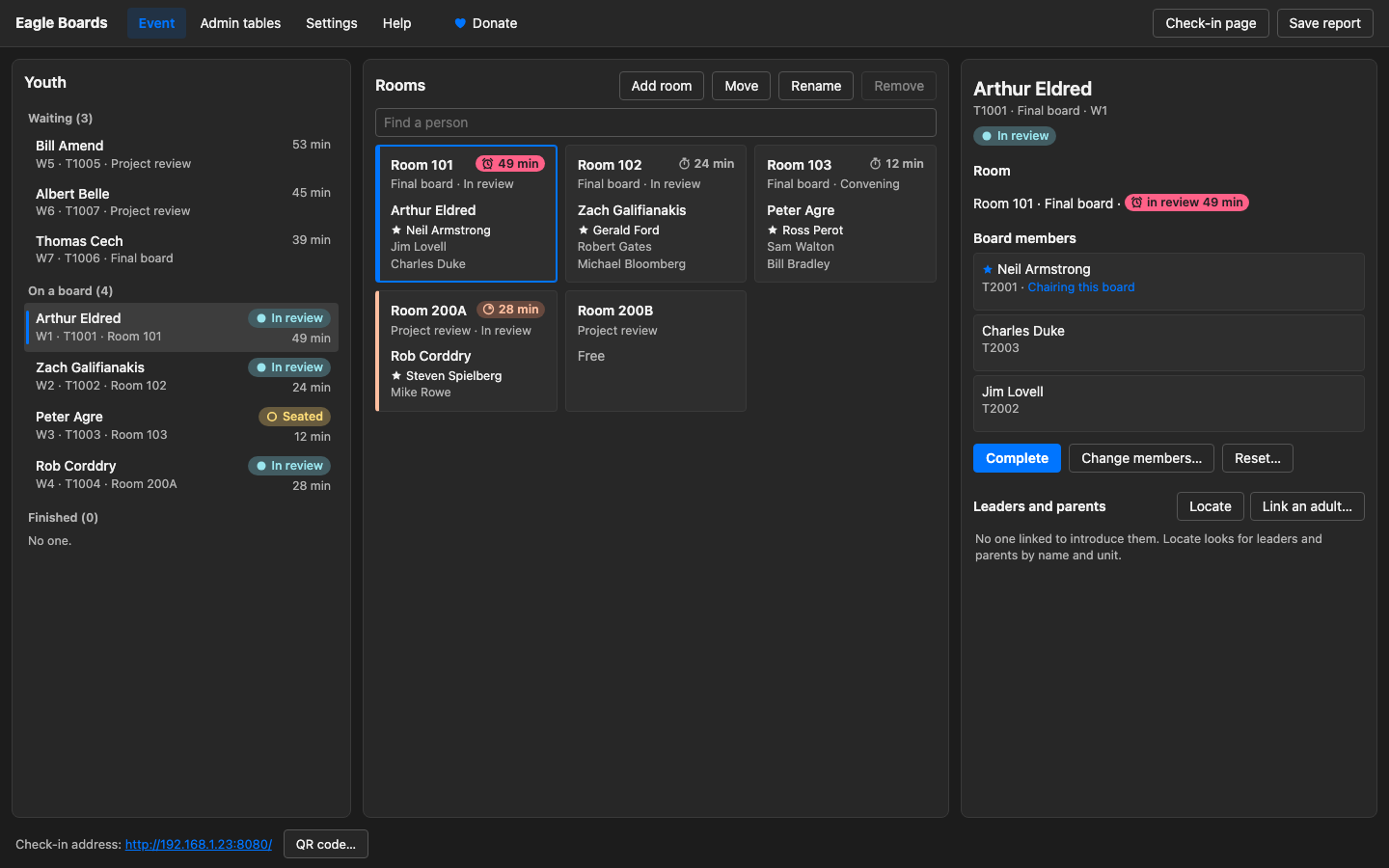
The district advancement chair seats each Scout with a board and a room in a couple of
clicks, and records the result when they come out.
It runs on one computer at the venue, needs no internet connection and no
account, stores everything locally, and is free under the Apache 2.0
license. If it helps your district, you can
support its development.
Features
All three versions do everything in this section. What each does on its own
is under Pick a version.
Check-in at the door
- Scouts and adults sign themselves in on a tablet, phone, or laptop at
the door, in its web browser, with nothing installed on it. Scouts tap I
am a youth, adults tap I am 21 or older, and each sign-in shows up on
the admin computer the moment it’s made. All three versions serve the
same sign-in pages.
- Returning people don’t type it all again. Adults who have served
before are recognized by email and the form fills itself in. Scouts and
adults who reserved a slot on SignUpGenius can be
loaded before the doors open, so they’re recognized too.
- Scouts give only what the board needs: a name, an email address, a
unit, which review they’re here for, and, if they like, their unit leader.
A Scout is never asked for a phone number or a birthdate.
- Adults say how they’ll serve: as a member or a chair for each kind of
board, or No thanks to one. They can count the event toward a Wood Badge
ticket item, and tick the Scout they’ll introduce to their board.
- A QR code opens the check-in page, so nobody types an address into the
tablet.
- Reserved and walk-in Scouts are numbered differently,
P1, P2… and
W1, W2…, so the district advancement chair can tell them apart in the queue.
Building each board
- Proposes each board. Select a Scout and the program suggests a chair,
members, and a free room of the right kind. It weighs the whole waiting
line, so the adults who can chair aren’t all spent on the first boards,
and puts the adults who have waited longest first.
- Pick by hand, or let it fill in. Add or remove anyone, then have the
program complete the board around the people you chose.
- Enforces the Guide to Advancement’s board rules. A final board has
three to six members and a proposal review two to six; anything else is
refused. The chair must be someone marked as qualified to chair that kind
of board, and nobody sits on two boards at once. Adults from the Scout’s
own unit are named in a warning before you confirm, and a board made
entirely of them is refused.
Running the event
- One button for each step. Seat the board, and the members take the
room and the paperwork while the Scout waits outside. Start review when
they’ve finished reading. Complete when the board comes out, with its
result (approved, adjourned, or not approved) and any notes. The same key
takes each step: Ctrl+Enter, or ⌘↩ on a Mac.
- Times every room. A board that has been reading the packet for 30
minutes is overdue. A final board past 30 minutes with the Scout is
running long, and past 45 overdue, matching the Guide’s own numbers.
They’re prompts, not limits, and they can be changed in the settings.
- Finds who introduces the Scout. At a board of review, starting the
review names the adult who introduces the Scout, usually their
Scoutmaster, and where they are, so someone can fetch them to walk the
Scout in.
- Copes with change. Swap a member out mid-board without restarting the
room’s timer. Mark an adult who has gone home, so they aren’t proposed
again. Postpone a Scout whose paperwork isn’t in order.
- Undo for every step: seating, starting, completing, changing members,
and changes to the rooms. Only Reset, Postpone, and Remove room ask first.
- Rooms the way you use them. Add each room for final boards or
proposal reviews, rename it, switch it between the two, or move a board
to another room. Two proposal reviews in one room are two names, such as
200A and 200B.
Records and reports
- Saves as it happens. Every sign-in, seating, and result is written to
a dated folder of CSV files. There’s no save step.
- Remembers adults from one event to the next, so returning volunteers
are recognized at the door.
- Every record can be corrected where it’s shown, in the program’s
tables: a result or its notes, a misspelled name, an adult promoted to
chair. An adult who won’t use the tablet can be signed in by hand, filled
in from the adult history.
- Approved proposals from earlier events, however long ago, for a Scout
who comes to their board of review without the signed page: who approved
it, and when.
- A report of the event: every Scout’s board and result, saved as a
spreadsheet (CSV) that opens in Excel.
- The same files in every version, so a district can switch versions
from one month to the next.
Privacy and cost
- Keeps data in the building. No cloud, no login, no telemetry. The data
includes contact details for minors, and it stays on the computer that ran
the event. The only time the program goes online is the optional
SignUpGenius import, which only downloads.
- Free and open source, under the Apache 2.0 license: no account, no
trial, no ads. One Donate link, in the top bar on Java and the Help menu
on the Mac and Windows, never interrupts the district advancement chair.
Accessibility
Board of review events run on volunteers, and about one man in twelve is
color-blind. So the scheduler shows everything in words and symbols, not only
color, and it’s built for volunteers who use a screen reader, a keyboard, or
larger text too. All three versions do all of this.
Color is never the only signal
- Every status is a word with its own symbol. Each Scout in the queue is
marked with a word such as Waiting or In review and a matching symbol.
The tint behind it only helps you scan the list.
- A room that needs checking changes its clock. A room on time shows a
stopwatch beside its minutes; running long, a timer clock on an orange tint;
overdue, an alarm clock on a solid pink-red fill. The two late states differ
in shape and lightness, not only hue, and the colors come from one palette
checked for color blindness. The minutes are always shown as a number, and
pointing at them brings up a tooltip naming the time the room has passed.
- Board problems are written out. Too few members, a chair who isn’t
qualified, adults from the Scout’s own unit: each is listed in words, with
an icon, before you seat the board.
- Sign-in mistakes are spelled out. On the check-in pages, a field that
needs fixing gets a message beside it and a line in a summary, not only a red
outline.
At the door
The check-in pages meet WCAG 2.2 level AA,
the current standard for accessible web pages. Every page is scanned with
the axe-core accessibility checker in light and dark mode, both blank and
with every error showing, before a change goes in.
- Contrast is measured, not picked by eye. All 21 pairs of text and control
colors are measured in both light and dark mode on every change. Text needs
4.5:1 or better against its background; field borders and the focus ring need
3:1 or better.
- The tablet’s accent color is ignored on purpose, so a tablet set to
yellow can’t put yellow text on white.
- Big targets. Every button and field is at least 44 pixels tall. Sign
in stays pinned to the bottom of the window, so nobody has to scroll with
a laptop trackpad to find it.
- Follows the device. The pages use the tablet’s own light or dark
setting and text size, and fit a narrow screen in one column without
sideways scrolling. Windows High Contrast gets the system’s colors.
- Works with a keyboard and a screen reader. Every field has a real
label, every control shows a visible focus ring, and errors are read out,
with the cursor moved to the first one.
- No rush. After signing in, the page says it will return to the start
in 20 seconds and offers Stay on this page. Nothing else on the page
moves or changes on its own.
At the admin computer
- Follows the computer’s settings: light or dark mode, high-contrast
mode, and the system font.
- Buttons have names. Buttons that are only an icon have a name a screen
reader speaks, such as Remove Neil Armstrong or Add Jim Lovell.
- Messages wait for you. A problem stays on screen, next to what it’s
about, until it’s fixed or dismissed. Nothing vanishes on a timer.
Requirements
- An admin computer for the district advancement chair, running one of the three
versions below. Each version’s page lists its system requirements.
- A check-in station: any tablet, phone, or laptop with an up-to-date web
browser, such as Safari, Chrome, Edge, or Firefox. Nothing is installed on
it. Turn off the browser’s saved form entries (autofill), so one person’s
details are never offered to the next.
- A local network both can reach: the venue’s Wi-Fi, a travel router, or
a phone hotspot. Some guest Wi-Fi networks stop devices from reaching each
other; if the tablet can’t open the check-in page, that may be why. No
internet is required, except for the moment the
SignUpGenius import runs, if you use it.
Pick a version
All three run an event the same way, with the same check-in pages. Pick the
one that runs on the admin computer you have.
| Java | Mac | Windows |
|---|
| Runs on | Windows, macOS, or Linux with Java 21 or newer, including a Raspberry Pi | A Mac with Apple silicon, macOS 14 Sonoma or later | Windows 11, or Windows 10 22H2, on a 64-bit Intel or AMD processor |
|---|
| Run the event from | A web browser | A native Mac app | A native Windows app |
|---|
| Admin pages on the network | Yes | No, the Mac only | No, the admin computer only |
|---|
| Install | Java, then a single .jar file (6 MB) | An app you drag to Applications (6 MB) | A single .exe (74 MB), nothing to install |
|---|
| Requirements and install | Java version | Mac version | Windows version |
|---|
| Source | deekayen/eagleboards-java | deekayen/eagleboards-macos | deekayen/eagleboards-windows |
|---|
The Java version is the original; the Mac and Windows versions are native
ports. On the native versions only the sign-in pages are reachable from the
network, so nobody at the door can look up anyone’s contact details.
Each version also does a few things of its own:
- Java: the admin pages open in a browser on any computer on the
network, so the program can run on a Raspberry Pi with no screen while the
district advancement chair works from a laptop. It’s also the version for an Intel Mac.
- Mac: the Dock icon counts the Scouts waiting, a notification says when
a room goes overdue while you’re in another app, a Scout can be dragged
onto a free room, and Room › Copy Rooms From brings back an earlier
event’s rooms.
- Windows: nothing to install, and it accepts the Java version’s
command-line options, so a launcher written for Java keeps working.
All three read and write the same data folder, so a district can switch
between them from one month to the next. Don’t run two at once against the
same folder.
SignUpGenius
If Scouts reserve their slots on SignUpGenius,
the scheduler can load that event’s reservations before anyone arrives. A
Scout who reserved types their email at the door and the rest of the form
fills itself in, and they’re numbered P1, P2… in the queue so the event
chair can tell them from walk-ins (W1, W2…). Adults who reserved a
volunteer slot are recognized by email the same way, and an adult naming the
Scout they’ll introduce can pick from everyone who reserved.
The import is optional. Without it, everyone signs in as a walk-in and the
event runs the same way.
Import behavior
- Finds the sign-up by itself. It uses the active sign-up whose title
contains both Eagle and Board and whose dates include today. The Java
and Windows versions can instead be given one sign-up’s ID with
-sugid
on the command line. - Takes this month’s slots only. Every filled slot dated in the current
calendar month comes in, so a year-long sign-up with one date per month gives
only this month’s. Two events in the same month would both come in.
- Sorts people by slot name. A slot whose name contains adult is an
adult volunteer. Every other slot is a Scout, and its name says which
review they’re here for; see Setting up the sign-up
below.
- Adds Scouts to the event’s reservations: name, email, unit, which
review, and unit leader. A Scout’s phone number is not imported, even if
the sign-up asked for one. A Scout already on the list with the same
email is left alone, so importing twice does no harm.
- Adds adults to the adults it remembers. An adult whose email matches one
adult already on file gets their phone number updated. A new email is added
as a Member for both kinds of board; only the district advancement chair
makes someone a chair. An email that matches more than one adult on file is
skipped instead of guessed at.
- Only downloads. It’s the one time the scheduler goes online, and nothing
about the event is sent back to SignUpGenius. If SignUpGenius can’t be
reached, the program says so and continues without it. Reservations already
imported for the event are saved in its folder and stay there.
Setting up the sign-up
The import reads SignUpGenius’s report of filled slots, so the sign-up has
to be built the way the scheduler expects.
A Pro account. SignUpGenius gives API keys only to its Pro
subscriptions. Once you’re signed in, the key is under Pro Tools ›
API Management.
A title with Eagle and Board in it, such as Etowah District
Eagle Boards 2027. Keep only one active sign-up with both words in its
title, or the import may pick the wrong one.
One date per event, with its slots on the date of the event
itself.
Slot names the scheduler can read.
- The adult slot has Adult in its name, as in Adult Volunteer.
- The final board slot has Review in its name and not Project or
Proposal, as in Eagle Rank Board of Review.
- The proposal review slot has Project in its name and not Review,
as in Service Project Proposal Approval.
- No Scout slot mentions Adult, even in passing, such as (adult must
attend), or its Scouts are imported as volunteers.
The versions check slot names in slightly different orders, so a name
such as Project Proposal Review is a final board to Java and Windows
and a proposal review to the Mac. Names that follow these rules mean the
same thing to all three.
The first three questions, in this order. The scheduler reads the
answers by position, not by what the question says:
- Unit, such as Troop 1776. The digits become the unit number, and
an answer that starts with Crew or Pack sets that type (the Mac
also knows Ship). Anything else is taken to be a troop.
- Phone number. Kept for adults. A Scout’s answer is not imported.
- Unit leader’s name: the Scoutmaster or coach who will walk the
Scout in. Kept for Scouts. An adult’s answer is not used.
Questions after the third are ignored, so add any others after these.
The Scout’s own name, and the email they’ll use at the door. The name
on the slot becomes the Scout’s name at the event, and the email is how
the check-in page finds the reservation. Say so on the sign-up, because
parents often sign up under their own name and email.
Etowah District
The district’s three slots, Eagle Rank Board of Review, Service Project
Proposal Approval, and Adult Volunteer, follow these rules. See
Planning the Year for how the sign-up is
built each September.
API key storage
The import needs a SignUpGenius API key, which works like a password to the
account. Keep it out of shared folders, emails, and screenshots.
| Java | Mac | Windows |
|---|
| Key | -sugkey and the key on the command line; the repository’s scripts/run launchers pass it on from a SUG_KEY= line in a .env file, or the SUG_KEY environment variable | Settings › SignUpGenius, saved in the macOS keychain | The SignUpGenius API key box in the start-up window, kept encrypted for your Windows account and never in the data folder |
|---|
| Imports | Each time the program starts | When today’s event is opened, if Import when today’s event is opened is on, and whenever you press Import Now in the same settings | On Start, when Import the event’s sign-ups from SignUpGenius is ticked |
|---|
The admin computer needs the internet only while the import runs. If the
venue’s Wi-Fi can’t be trusted, start the event at home on the day: the
reservations are saved with the event and are still there when you start
again at the venue.
Getting help
- This site walks through an event on each version, with pictures:
Java, Mac, and Windows.
- Inside the program, Help covers each step: Help in the top bar on
Java, Help › Eagle Boards Help on the Mac, and Help › Eagle Boards
help (F1) on Windows.
- Each version’s repository has an operator’s manual written for the
volunteer running the door, not for a programmer.
- Found a problem, or want something changed? Open an issue on that
version’s repository: Java,
Mac, or
Windows. Describe
it with made-up names; never attach the event’s CSV files, a screenshot
with real people in it, or the SignUpGenius key.
A walkthrough of an event on the original Java Eagle Board Scheduler, which runs on any computer with Java 21 and is operated from a web browser.
A walkthrough of an event on Eagle Boards for Mac, the native macOS version of the scheduler for Apple silicon Macs.
A walkthrough of an event on the Eagle Board Scheduler for Windows, a native Windows app that needs nothing installed.
Last modified October 25, 2026